CityScroll

Back to the guide

How to… · How-to guide

Find and narrow records

Search for a topic, move to the one collection that holds the kind of record you want, narrow it, and keep the link.

How do I find records about my topic and narrow them down?

Last reviewed 2026-09-05

Your task

Find the records the city has published about a topic you care about, narrow them to the one kind of record you actually want, and keep a link that brings you back to the same view.

Before you start

Step 1 — Search for the topic, not the record type

Type an ordinary word — a street, a landlord, an agency, a job title — and press Search. The address becomes cityscroll.org/search/?q= followed by your word.

Results come back grouped by the kind of civic object they are, rather than as one ranked list. The groups are Contracts, People and organizations, Land, Rules, Meetings, and Exams. Each result also says why it matched, and a result matched on a passage carries the sentence from the published record under a line reading Related because this source passage contains the topic words.

How many results each group holds depends on what the city published recently, so the counts will not match anyone else's. Read which groups filled up, not the totals.

Checkpoint: you can name the groups that hold results for your word, and say what kind of record each one contains.

Step 2 — Move to the collection that holds your kind of record

Search is for finding a starting record. Once you know the kind of record you want, work inside that collection, where the filters for that kind live. Browse lists every collection with what it covers and what it can be filtered by.

Three of them are about people, and they are genuinely different destinations. Choosing the wrong one is the most common way to conclude a record does not exist when it does.

Checkpoint: the page you are on names the collection you chose, and its filters are about that kind of record.

Step 3 — Narrow inside the collection

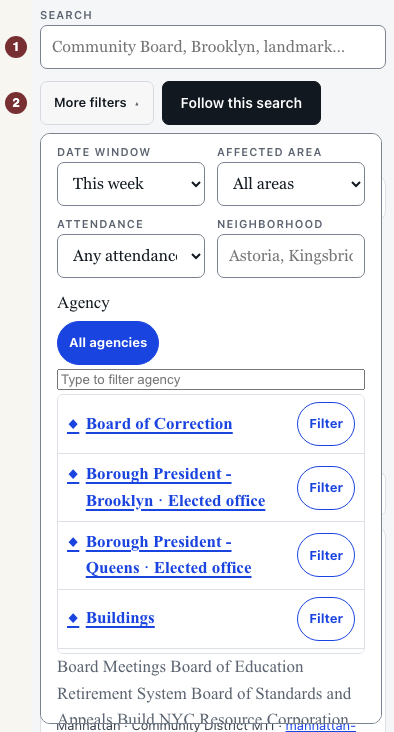
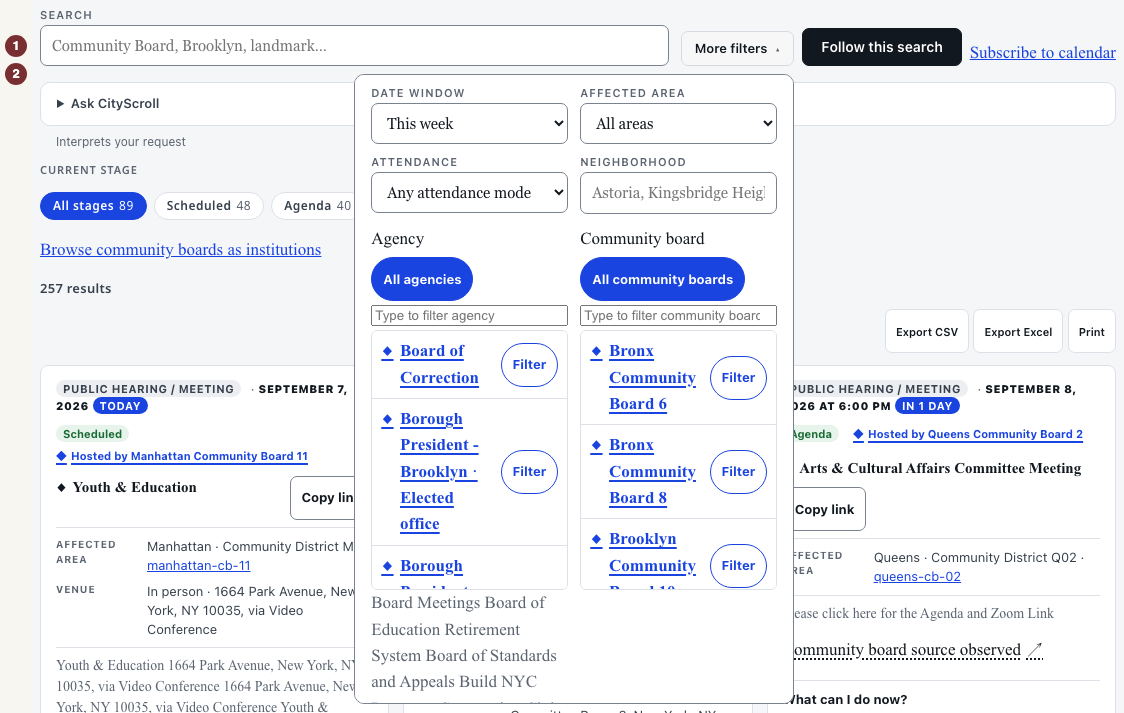
Each collection offers the filters that make sense for it, and only those. Contracts filters by keyword, agency and minimum award amount. Meetings filters by keyword, date window, borough and agency. Land filters by keyword, action type, review procedure and stage. Rules filters by keyword and agency. Exams filters by job or exam number, eligibility, interest area and exam window.

Time and place are not offered everywhere, because they do not mean the same thing everywhere. A meeting has a date and a borough; a registered contract has an award amount and an agency. Use what the collection gives you rather than looking for a control it does not have.

Checkpoint: the list shortened, and the filters you set are shown as the ones in force.

Step 4 — Keep the narrowed view

Copy the address out of your browser's address bar. Everything you chose is in it, so opening it later — or sending it to someone else — rebuilds the same narrowed view against whatever the city has published by then.

That link is worth more than a screenshot, because it stays current. It carries nothing about you.

Checkpoint: pasting the address into a new tab reopens the same collection with the same filters set.

Step 5 — Read one record to the end

Open a single record and read what it actually says. A civil-service exam is a good example, because it shows the whole shape at once: Caseworker, exam 7016 has an application window of 07/01/2026 to 07/21/2026, and that window is marked closed.

A closed window is not a broken page. The record stays complete and useful — the fee, the salary, the qualifications, the official notice, and what usually happens next — and CityScroll says the window has passed instead of inviting you to apply to something you cannot apply to. Every record carries a link to the city's own published copy, and that copy is the one to trust.

Checkpoint: you can say what the record is, what state it is in today, and where the city published it.

When nothing comes back

An empty result is a real answer, and it usually means one of four things. Work through them in this order rather than retyping the same search.

If a page tells you a source could not be reached, that is different again — it means the answer is unknown right now, not that there is nothing. Try it again later before drawing a conclusion.

You are done when

You are on one collection, narrowed by filters you chose, with a record open that you can read to the end and check against the city's own copy — and the address in your browser reopens exactly that view tomorrow.

Sources used in this article

Start a search