CityScroll

Back to the guide

Start here · Tutorial

Explore housing across city records

Follow one real search from the front page to an official city record, and learn how CityScroll groups what it finds.

I want to learn how this works — where do I begin?

Last reviewed 2026-09-06

What you will do

You will search CityScroll for one everyday word — housing — and learn to read what comes back. Housing is a good first topic because the city publishes about it in several different ways at once, which is exactly what this tutorial is about.

By the end you will have opened a city agency, read a proposed rule, checked that rule against the city's own published copy, and saved a link that brings you back to the same view.

Before you start

Step 1 — Search for a topic

Open the CityScroll front page and type housing into the search box, then press Search.

The address in your browser will change to cityscroll.org/search/?q=housing.

This page assembles its results in your browser, so it needs JavaScript switched on. If yours is off, you can still read every page this tutorial sends you to afterwards, including the city's own record.

Checkpoint: the page is headed with your search word, and below it the results are split into several named groups rather than one long list.

Step 2 — Read the groups

Near the top you will see a row that names each group and how many results it holds — groups such as Contracts, People + organizations, Land, Rules, Meetings, and Exams.

Those group names are the point. A word like housing appears in a contract, in a land-use application, in a proposed rule and in a job exam, and those are genuinely different kinds of record. CityScroll keeps them apart so you can tell which kind you are looking at. If one of the group names is unfamiliar, the glossary says what each kind of record is.

How many results each group holds depends on what the city has put out recently, so your numbers will not match anyone else's — and some groups may hold nothing at all for a given word. Read the shape, not the totals.

Each result also tells you why it matched — because the words are in its title, in its summary, or in the body of the record itself.

Checkpoint: you can name two groups that hold results for your search, and say what kind of record each one contains.

Step 3 — Open the first kind of result

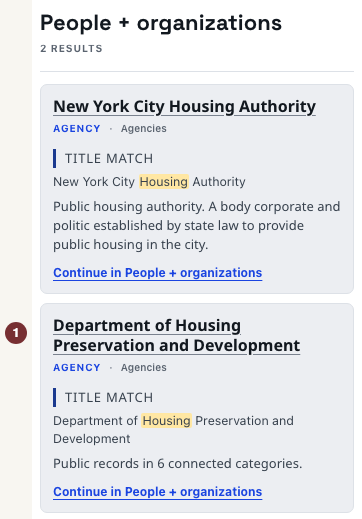
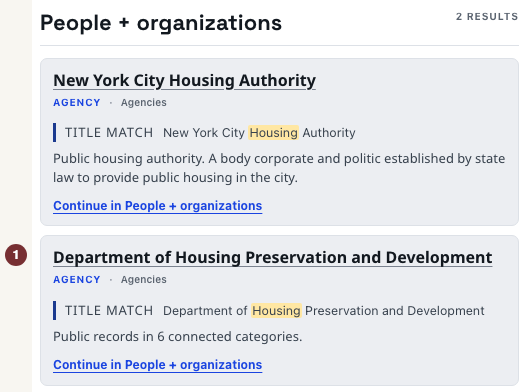
Find the group called People + organizations, and open one of its results by clicking its title. For this search you should see city agencies whose work is housing, such as the Department of Housing Preservation and Development.

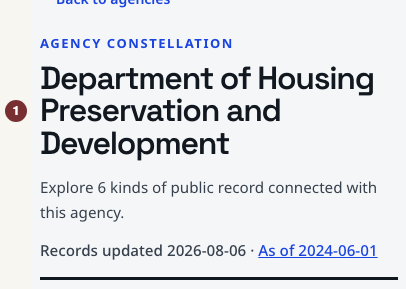
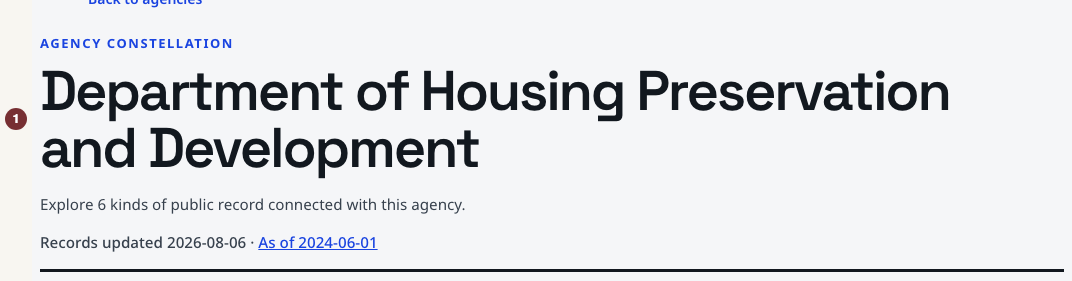
You are now on that agency's page. It gathers the different kinds of record connected to the agency — its contracts, the rules it has issued, meetings it takes part in — and gives a count for each.

Checkpoint: the page is named after the agency, and lists the kinds of record connected to it rather than a single mixed list.

Step 4 — Go back and open a second kind

Use your browser's Back button. You return to your results exactly as you left them, because the search is held in the address, not in the page's memory.

This time find the group called Rules. A rule is a proposal to change how an agency does something, and the city has to publish it before it can be adopted.

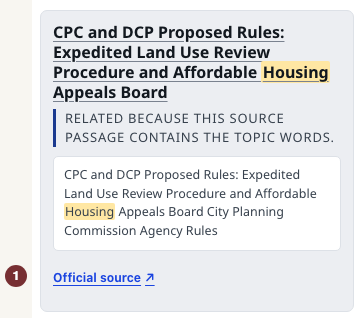
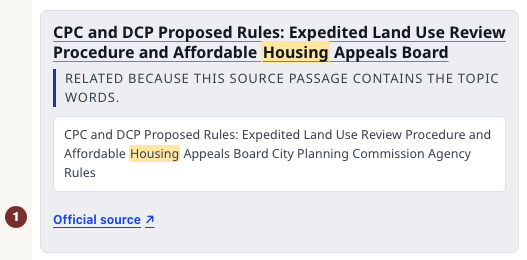
A result here is likely to show you the sentence from the published record that contains your search word, quoted directly, under a line explaining that it matched because that passage contains your topic words.

Checkpoint: you are reading a sentence taken straight out of a city record, in the words the city published it in.

Step 5 — Check it against the city's own copy

Next to that quoted passage is a link labelled Official source. Open it.

It takes you to The City Record Online, which is the city's own publication and the place the record was published in the first place. CityScroll does not decide anything and does not speak for any agency: it collects what has been published and shows you where to confirm it.

This step is the habit worth keeping. Anything you plan to rely on, act on, or repeat to someone else, you check at its official source first.

Checkpoint: you have the same record open on a nyc.gov page, published by the city itself.

Step 6 — Keep the link

Go back to your results one more time and copy the address from your browser's address bar. It is short, it contains your search word, and opening it later rebuilds the same grouped view against whatever the city has published by then.

That link is the useful thing to keep. It is worth more than a screenshot, because it stays current.

Checkpoint: pasting that address into a new tab brings back the same search, grouped the same way.

What you learned

Where to go next

If you want CityScroll to tell you when new records match a topic like this one, that is what Following does — it is optional, and it is the only part of this journey that asks for anything from you. Everything in this tutorial works signed out.

Otherwise, try the same six steps with a word that matters to you: your street, your landlord, an agency you are dealing with, or a job title you are studying for.

Before you rely on what you find, it is worth reading what a public record tells you. A record proves the city published something, and how much more it shows depends on which kind you are holding.

Sources used in this article

Try this search yourself