How to… · How-to guide
Find and narrow records
Find a topic, narrow the relevant collection, and keep a link to its filters.
Step 1 — Search for your topic
Open Search, type a word such as housing in the search field and press Search. This needs JavaScript switched on, but no account or email address. Results are grouped by kind of record. Read each result's match explanation before choosing it. Counts change as records change.
Step 2 — Open the relevant collection
Open Browse and choose the kind of record you need. Use People + organizations for agencies, boards and vendors, Staffing for appointments and hiring outcomes, or Exams for civil-service applications. The destination's heading confirms the collection.
Step 3 — Narrow the list
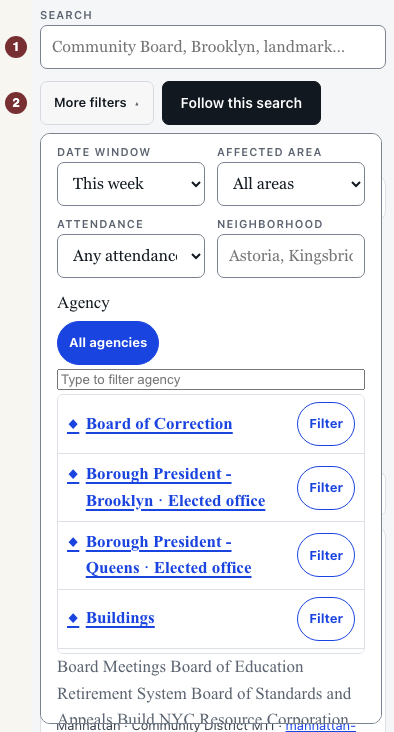
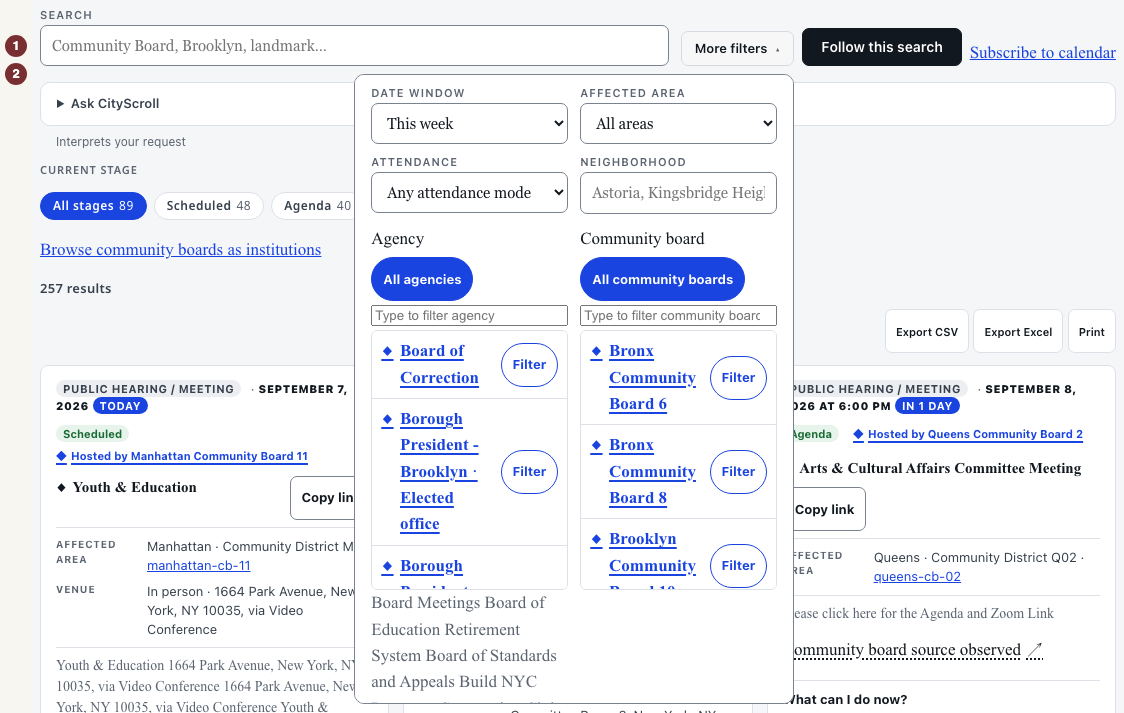
For a dated example, open Meetings. In the filters above the results, enter a word in Search. Open More filters to choose Date window, Affected area and Agency. The list updates to match. Other collections offer different controls. Controls and what they give you is an optional lookup.
Step 4 — Keep and reopen the view
Copy the full address from your browser's address bar and paste it into a new tab. Check that the collection and selected filters match. The link repeats your query against the records available when opened. It does not freeze today's results.
Step 5 — Check the record's current opportunity
Open a result by its title and read its status, dates and official-source link. For practice, Caseworker, exam 7016 has a closed application window. That historical record teaches the process. It is not an invitation to apply. For a current application, return to Exams and check an open window at its official source.
When results are empty or unknown
Remove a filter or shorten the keyword in the same controls, then search again. A loaded list with no matches describes the records searched, not everything the city has done. If a source could not be reached, its answer is unknown. Reload or open the record's official source before concluding it has no records.