Source anglaise : Back to the guide
Cette traduction a été générée automatiquement et n'a pas encore été révisée par un locuteur natif.
Source anglaise : How to… · Source anglaise : How-to guide
Source anglaise : Put dates in your calendar
Source anglaise : Add a single event or subscribe to a dated list, then check the result in your calendar app.
Source anglaise : Step 1 — Choose the dates
Source anglaise : Open Maintenant with JavaScript switched on. No account or email address is needed. Agir avant lists action deadlines. Bientôt lists events. Read the row's date and open its title to check the published record before saving it.
Source anglaise : Step 2 — Save one event
Source anglaise : Open Réunions and select a meeting title to open its meeting page.
Source anglaise : On a meeting's page, choose Add to calendar among its actions. This control appears only when the record has a clock time. Open the downloaded file in your calendar app and check the event's title, date and time.
Source anglaise : This is a one-time copy: it will not update if the event changes. If only a day is published, the control is absent. CityScroll supplies no clock time for a date-only event. For a continuing list, use the next step.
Source anglaise : Step 3 — Open a calendar subscription
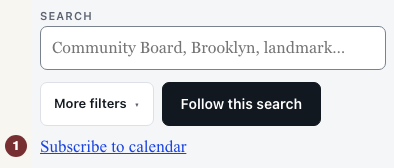
Source anglaise : Open Réunions. Enter a topic in Rechercher. Open Plus de filtres to choose Période or Zone concernée. Then choose S’abonner au calendrier in the toolbar above the records. The control appears only when the list contains dated items. If absent, widen the filters until dated records appear. The panel names the list you are about to subscribe to.
Source anglaise : If the filter panel covers the toolbar, close Plus de filtres and choose S’abonner au calendrier.

Source anglaise : Step 4 — Add the subscription in your calendar app
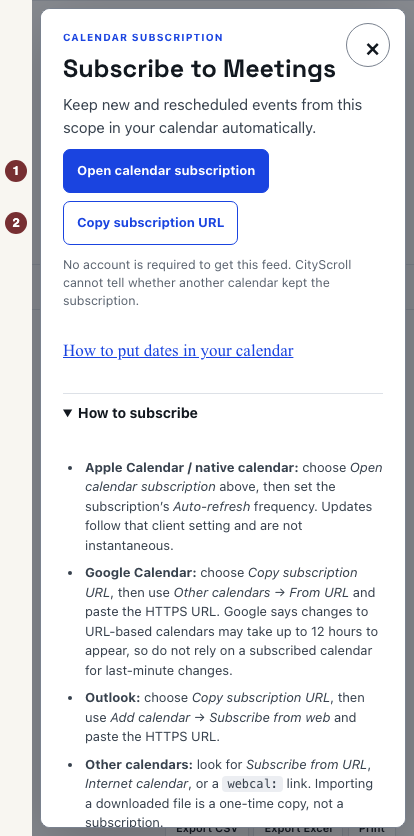
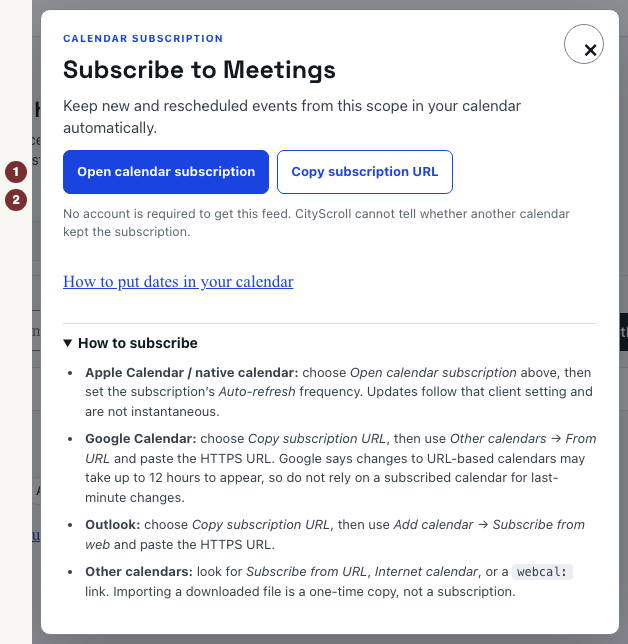
Source anglaise : In that panel, choose the route your app supports:
- Source anglaise : Ouvrir l’abonnement au calendrier opens your device's calendar app. Add the subscription there. In Apple Calendar, set its Auto-refresh frequency.
- Source anglaise : Copier l’URL d’abonnement copies an address. In Google Calendar, paste it under Other calendars → From URL. In Outlook, use Add calendar → Subscribe from web.
Source anglaise : Check in your calendar app that it lists a subscribed calendar and displays the expected dates. CityScroll cannot confirm that a subscription was added or refreshed. Importing a downloaded file is a one-time copy. Only a URL your calendar keeps fetching is a subscription.
Source anglaise : Subscriptions keep date-only deadlines as all-day entries and mark cancelled events as cancelled. Updates follow your calendar app's refresh schedule. Check the official record for last-minute changes.
Source anglaise : When dates are missing
Source anglaise : If Now lists an action with no published closing date, there is no deadline to export. Open Alertes to watch for updates instead. If a source could not be reached, the answer is unknown: reload before treating the list as empty.