Tradiksyon sa a te fèt otomatikman e li poko revize pa yon moun ki pale lang lan natifnatal.
Sous anglè: How to… · Sous anglè: How-to guide
Sous anglè: Follow a search and manage your updates
Sous anglè: Preview a watch, create it with your email address, and manage or stop its updates.
Sous anglè: Step 1 — Set the topic and place
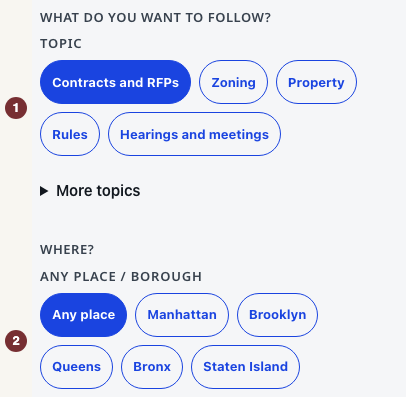
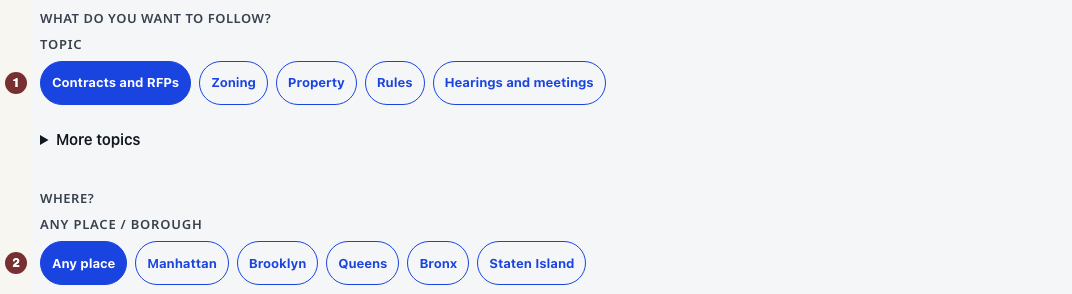
Sous anglè: Open Alèt with JavaScript switched on. Under Kisa ou vle swiv?, choose a topic such as Contracts and RFPs. Under Where?, choose a borough or Any place. Open Limite rezilta yo to add a keyword or agency. For contracts, open Fè matche pi presi to include any or all of a few words, treat an entry as an exact phrase, or exclude words. Example: include software, exclude maintenance, preview the awards, then tighten the exclusion if a useful record such as a Greenway project was removed because its body mentioned maintenance vehicles. Frozen award examples are published awards, not currently open bids. The selected choices describe an unsaved watch. No account or password is needed. This is separate from the city's own account system.
Sous anglè: Public meetings use the same Fè matche pi presi control. The board, place, and upcoming-event window you already chose stay the boundary. Extra wording only narrows it. Exact Council-matter watches and other topics do not offer these controls.
Sous anglè: Step 2 — Check the preview
Sous anglè: Press Gade rezilta ki koresponn yo below the choices. Read the rule sentence in Rezime swivi a, then check Kritè swivi a and the records under Apèsi. A preview is not a subscription: nothing is saved and no email is sent. Change a choice and press Mete rezilta ki koresponn yo ajou to revise it.
Sous anglè: The message No matches now — still watch for new means the loaded preview is empty. You can save a watch for future records, or widen a criterion and preview again. If the preview is not ready, use its retry control. The current matches are unknown.
Sous anglè: Step 3 — Create the watch
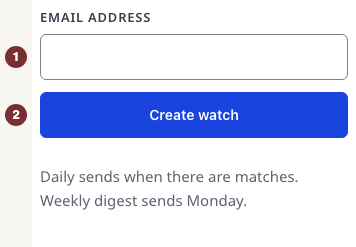
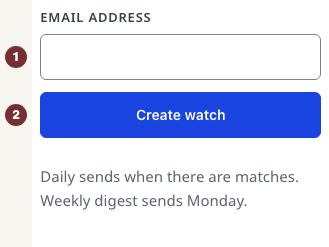
Sous anglè: Under Konbyen fwa pou voye imèl, choose Chak jou (on days with matches) or Chak semèn (Monday digest). Under Kreye swivi sa a, enter Adrès imèl and press Kreye swivi. The watch exists as soon as the request succeeds. There is no confirmation email to click.
Sous anglè: Check for Ou abòne — n ap voye imèl ba ou. Ou ka jere oswa anile abònman an nenpòt lè. Keep the welcome email's manage link. If the page reports an error, use its retry instruction. An error does not confirm enrollment.
Sous anglè: Step 4 — Change or stop updates
Sous anglè: Open the manage link in a CityScroll email. On the watch's row, change the frequency and press Save, or choose Pause, Unpause, or Delete watch. Check the row's resulting state. Edits apply to the next digest, around 9am Eastern. Unsubscribe all watches stops all updates immediately, so use it only when that is what you want.
Sous anglè: When saved watches are unavailable
Sous anglè: Under Swivi ou yo, an unrecognized browser asks you to open a CityScroll email. Use that email's manage link. A link reported as invalid or expired needs replacing with the link in a recent email. If saved watches cannot load, use the offered retry. That failure does not mean they were deleted. A watch link reported as unrecognized has saved nothing: choose a topic on Following and start again.