How to… · How-to guide
Look at records as of a day
Filter an agency to a chosen date and share or clear that view.
Step 1 — Apply a day
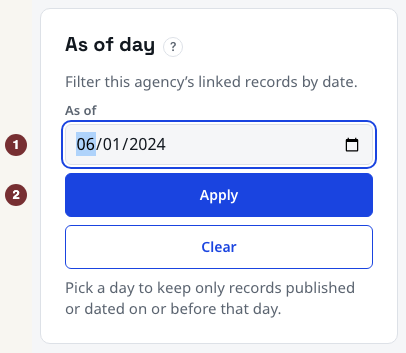
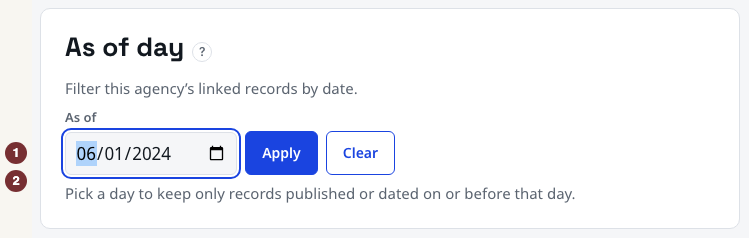
Open Parks and Recreation with JavaScript switched on. No account is needed. In the As of day panel, enter 1 June 2024 in As of and press Apply. The date stays selected and the summary counts records dated on or before it. The Parks example link opens the same filtered view.
This filters currently linked records by their event or publication date. It is not a reconstruction of what CityScroll knew that day. Undated records are excluded because they cannot be placed on a timeline.
Step 2 — Inspect what was set aside
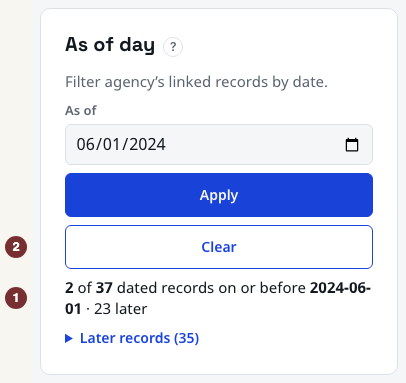
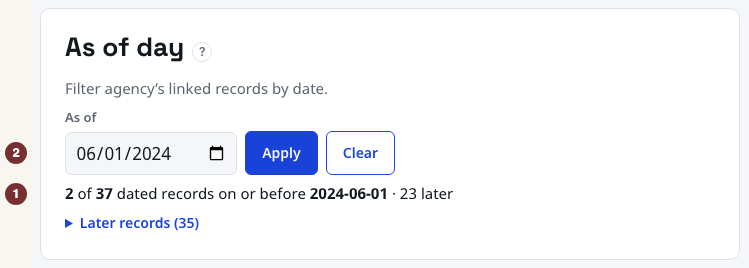
Under the count, open Later records. These records have dates after your chosen day. Compare the retained and later counts. Their values can change as records are added or corrected. An empty retained set means no dated records currently linked here meet the cutoff, not that the agency did nothing then.
Step 3 — Share the selected day
While the date is applied, copy the full browser address and paste it into a new tab. Check that As of holds the same day and the summary still names the cutoff. Share that address to repeat the filter against the records available when opened.
Step 4 — Clear the filter
Next to Apply, choose Clear, which appears after a date is set. The date selection clears and the page again invites you to pick a day. Repeat these steps on another agency from People + organizations when you need a different cutoff.
When the filter does not apply
Without JavaScript, submitting the date returns an unfiltered page. Enable JavaScript and press Apply again, then check the summary before relying on the result.