Start here · Tutorial
Trace an award and keep the trail
Follow a real city agency to an organization it pays and on to one award notice, and keep the whole path as a link you can send to somebody else.
How do I follow an agency to a vendor to an award, and keep that path?
What you will do
Following one link at a time is easy. Keeping the path you took is the hard part, and it is what makes a finding you can hand to somebody else rather than one you have to re-explain.
CityScroll records the path as you walk it. In this tutorial you will step from a city agency to an organization it pays, and on to one award notice, and finish with a single address that rebuilds that whole path in anybody else's browser.
Before you start
- No account is needed, and nothing here signs you up for anything.
- Set aside about fifteen minutes.
- The trail is drawn by the interactive part of the site, so this tutorial needs JavaScript switched on. The records themselves read without it.
Step 1 — Start at an agency
Open the Department of Homeless Services.
An agency page is a gathering point rather than a document. It holds the agency's contracts, the duties it carries, the rules it has issued, the exams it staffs from, and the organizations it does business with, each in its own section.
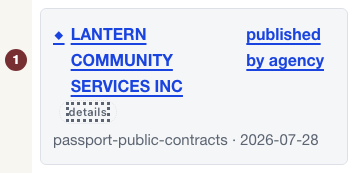
Find the section headed Connected records. Among its entries are the organizations the agency publishes records with, each naming the organization and, underneath it, the kind of connection — for these, published by agency.
Checkpoint: you are on a page named after the agency, looking at a list of organizations with a connection label under each one.
Step 2 — Take one step, and watch the trail appear
Click one of those organizations.
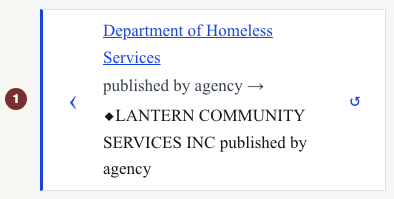
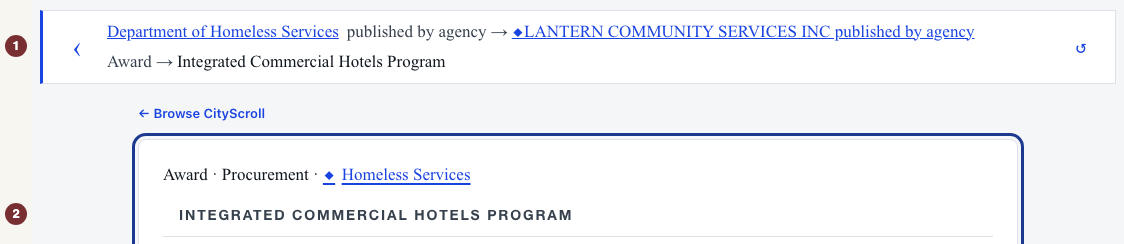
Two things happen. You land on that organization's page — CityScroll heads it Vendor profile, which is the word the city's contract records use — and a small trail appears at the top of it, reading the agency, then the connection, then where you are now. It has two controls beside it: one that steps back, and one that restarts you at the agency you began from.
Now look at your browser's address bar. It has grown a long value beginning walk=. That is the trail itself, written into the address.
Checkpoint: the trail names the agency you came from and the connection you followed, and the address bar carries a long walk= value it did not have a moment ago.
Step 3 — Take the second step
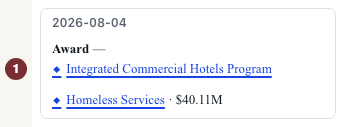
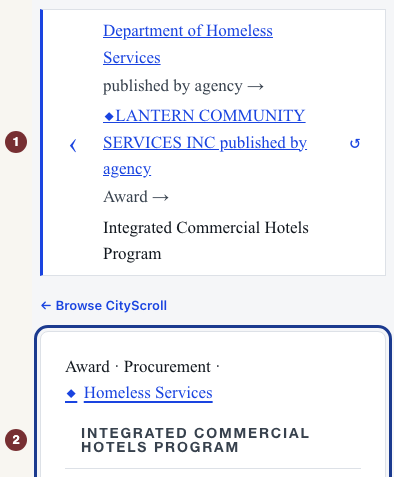
An organization's page has its own connections, and awards are one of them. Follow one to reach a single award notice, and the trail grows to two steps.
One thing to watch for, because it happens: not every link on the page carries the trail. A link that reopens a record from a plain list can land you on that record with the trail restarted. The address bar is how you tell — if the long walk= value is gone, the trail is gone with it. Your browser's Back button returns you to where it still existed.
Checkpoint: you can tell, from the address bar alone, whether the step you just took kept the trail or started a new one.
Step 4 — Open a finished trail
Rather than depend on which organization you happened to pick, open the finished example: Homeless Services to an organization it pays to an award notice.
The trail across the top reads: Homeless Services, awarded to, Housing Options and Geriatric Association Resources, received award, and the award notice itself. Underneath it is the notice, for a family sanctuary facility on West 50th Street.
Checkpoint: the trail shows two steps with two different connection labels, and the last one is the page you are on.
Step 5 — Prove the trail lives in the address
Copy the whole address, open a new browser tab, and paste it in.
The trail comes back exactly as it was. Nothing was remembered by your browser and nothing was stored for you: everything needed to rebuild those two steps traveled in the address. That is why it survives being pasted into a message, and why the person who receives it sees what you saw.
Checkpoint: a fresh tab, with no history of your clicks, shows the same two-step trail.
Step 6 — Read the two steps as two separate claims
The trail is two hops, and they say different things.
- awarded to links the agency and the organization. It says these two appear together in published award records.
- received award links the organization and this particular notice. It says this notice is one of that organization's awards.
Neither step says the organization is doing well or badly, and neither is a statement by the agency. To see the evidence under any single connection, use the small control on the connection itself, or read how to check the evidence behind a connection.
One more thing worth saying plainly, because award records get read this way and it is wrong. The organization named on an award is the one the city awarded the work to. That is not an announcement that subcontracts are available, not an invitation to bid, and not a contact route for work. If you are looking for something to bid on, an open solicitation is a different kind of record and says so.
Checkpoint: you can state what each of the two steps claims, and what neither of them claims.
What you learned
- A trail is built by following connections, one step at a time, and it is shown to you as you go.
- The trail travels in the address, which is why it can be shared and why it survives a new tab.
- Not every link carries it, and the address bar tells you which happened.
- Two steps are two separate joins, and a named awardee is not an opportunity.
Where to go next
Try it from an agency that matters to you. Open its page, step to an organization, step on to one of its awards, and send the resulting address to somebody with the sentence you think it supports.
If you would rather keep several records together than one path, that is what the investigation workspace is for: see how to collect records, add notes, and export them.