How to… · How-to guide
Collect records, add notes, and export them
Pin real records into an investigation, annotate them, take them away as a file, and know exactly where each copy lives and who can see it.
How do I keep a set of records together and take them with me?
What this is for
When you are working on something, the records pile up: a notice, the organization named in it, an agency page, a contract. The investigation workspace keeps them in one list with your own notes attached, and lets you take that list away.
The important part of this page is not the buttons. It is knowing which copy of your work lives where, because four different things happen and they are easy to confuse.
Before you start
- No account is needed, and none is offered.
- Pinning and the workspace are drawn in the browser, so this needs JavaScript switched on.
- Everything below was checked with two real public records, which you can use too.
Pin two records
- Open a record. This page uses an award notice for a family sanctuary facility on West 50th Street.
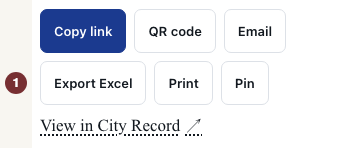
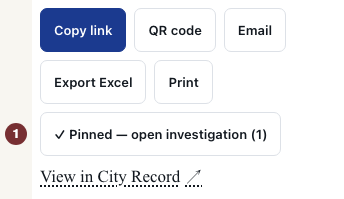
- Find the Pin control among the record's actions and press it. It is replaced by a confirmation that says how many items you now have and links to the workspace.
- Open a second record — the organization named on that award — and pin that too.
Pin sits with a record's own actions, alongside the copy-link and follow controls — it is there on a notice and on an organization. It is not on a search results page, so open the record itself first.
Checkpoint: the second pin confirms two items.
Open the workspace
Go to your investigation. The link is also in the footer of every page, as My investigation.
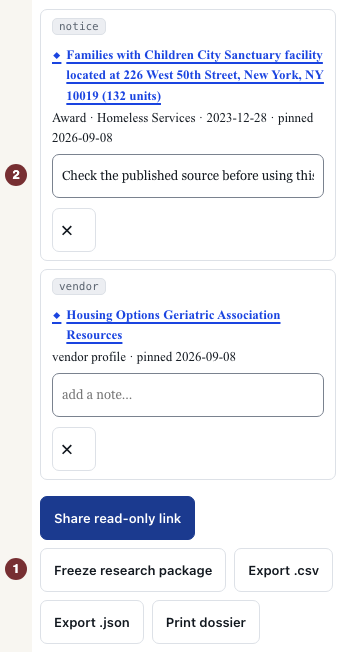
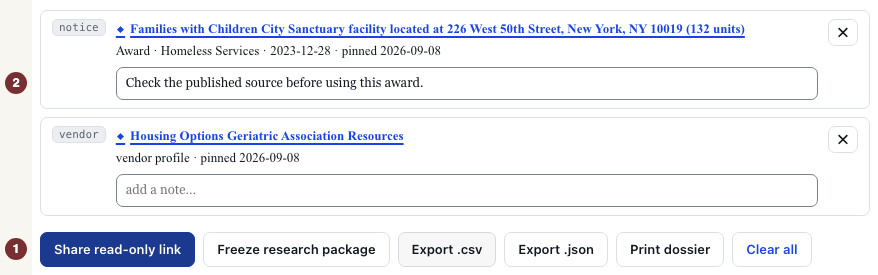
The heading says it plainly: Investigation workspace · stored only in this browser. Under it is the count, the day you started, and your two records with the day each was pinned.
Checkpoint: both records are listed, each with the day you pinned it.
Add a note
Each item carries a text field prompting you to add a note. Type into it and click away; the note is saved as you leave the field.
Notes are the reason to use this rather than browser bookmarks. They are also the thing to be careful with when you share, which the next section covers.
Checkpoint: your note is still there after you reload the page.
Take it away as a file
Two buttons produce a file on your own machine.
- Export .csv gives a spreadsheet with a row per record: its type, title, the summary line, your note, the day you pinned it, and a permanent link back to the record.
- Export .json gives the same list in a structured form, including the name and start date of the investigation.
Both are snapshots. They do not update when the city publishes something new, which is exactly what you want when citing a record as it stood.
The Print dossier button opens your browser's ordinary print window on the same list, so you can save a PDF the same way you would from any page.
Checkpoint: your downloaded file has one row per record, each with its note and its link.
Share a read-only snapshot
The Share read-only link button does something different from an export, and the difference matters.
It uploads a copy of your list to CityScroll and gives you back a link that lives 90 days. Anyone who opens that link sees a read-only version headed Shared investigation with the date of the snapshot, with your notes shown as text and no way to edit or delete anything. They get one action: importing the records into an investigation of their own.
So, in plain terms: your notes leave your device when you share, and anyone holding the link can read them. There is no password on the link. Read your notes before you press it.
Checkpoint: you can say what leaves your device when you share, and what does not.
Four places your work can live
This is the whole point of the page, so it is worth having in one list.
- This browser. The default. The list and the notes are stored by your browser for this site. Another device does not have them, and clearing your browsing data for this site removes them.
- A recognized session. If you reached CityScroll through a link in one of its own email digests, the site recognizes you and your pins are kept for you, so a phone and a laptop show the same list. An ordinary signed-out visit is not recognized, and nothing is kept.
- A downloaded file. A copy on your machine, fixed at the moment you exported it. CityScroll does not know it exists and cannot change it.
- A shared snapshot. A copy on CityScroll's servers, readable by anyone with the link, for 90 days, notes included.
When something is unavailable
The Freeze research package button sits next to Share and is not the general export. It is for investigations that contain an admitted comparison — a claim measured against a peer group — and it refuses an ordinary list of pinned records, saying so directly rather than producing an empty file. For an ordinary set of records, use the CSV or JSON export above.
Sharing needs CityScroll's server. If it cannot be reached, the button reports that rather than appearing to succeed, and your list stays on your device unchanged.
The Clear all button empties the investigation immediately, with no confirmation step. The empty workspace then explains where to find the Pin control again and lists the outputs that come back once you have pinned something. Exports you have already downloaded are unaffected, and so is a snapshot you have already shared.
Checkpoint: an empty workspace tells you how to start again rather than reading like an error.
Do this with your own records
Pin the next two records you open, name the investigation after the question you are asking, and put the reason you pinned each one in its note. When you come back to it, the note is the part you will be glad of.