How to… · How-to guide
Collect records, add notes, and export them
Pin records, save notes, and choose between a local export and a shared copy.
Step 1 — Pin two records
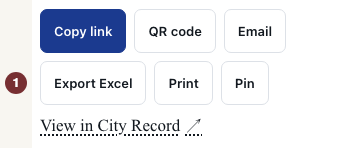
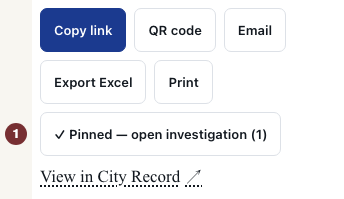
Open the West 50th Street award notice with JavaScript switched on. Among the record's actions, choose Pin. The confirmation links to the workspace and shows the item count. Open the named organization and choose Pin there too. Pin appears on individual records, not search results.


Step 2 — Add and check a note
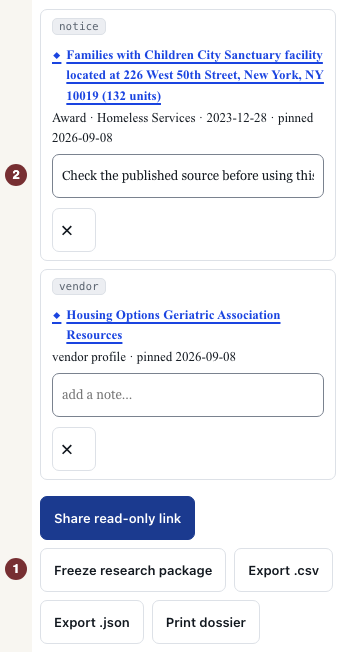
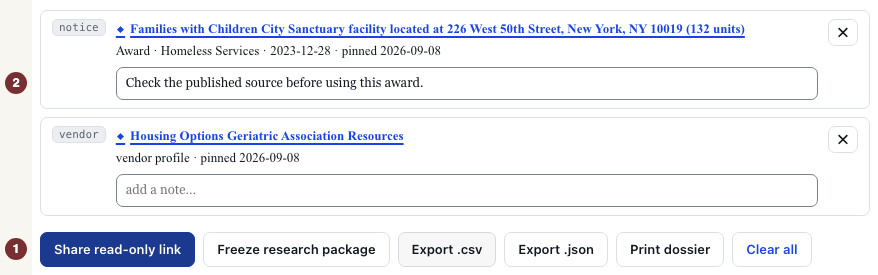
Open My investigation in the page footer, or your investigation. Check that both records appear under Investigation workspace · stored only in this browser. No account is needed. Under a record, type in add a note…, then click outside the field to save. Reload and check that the note remains.
In an ordinary signed-out visit, the collection stays in this browser. Clearing its site data removes it. A session recognized through a CityScroll email can keep pins across devices.
Step 3 — Export a copy
Below the items, choose Export .csv for a spreadsheet or Export .json for structured data. Open the downloaded file and check the records, notes and links. Both files are fixed copies. They do not update. Print dossier opens the browser's print window to print or save a PDF.
Step 4 — Share only after checking the notes
Read your notes before choosing Share read-only link below the items. This uploads a snapshot, including notes, to CityScroll. Anyone with the link can read it without a password for 90 days. It is separate from your local list and does not follow later edits.
Open the returned link in a new tab. Shared investigation should show the records and notes without editing controls. A recipient can import a copy into their own investigation.
When an action is unavailable
If sharing reports a server failure, keep the local list and use Export .csv or Export .json. Freeze research package requires a supported comparison. For ordinary pinned records use those exports.
Choosing Clear all empties the local investigation immediately without confirmation. Use it only when ready to remove that list. Existing exported files and shared snapshots remain. An empty workspace explains how to start again: open an individual record and choose Pin.